
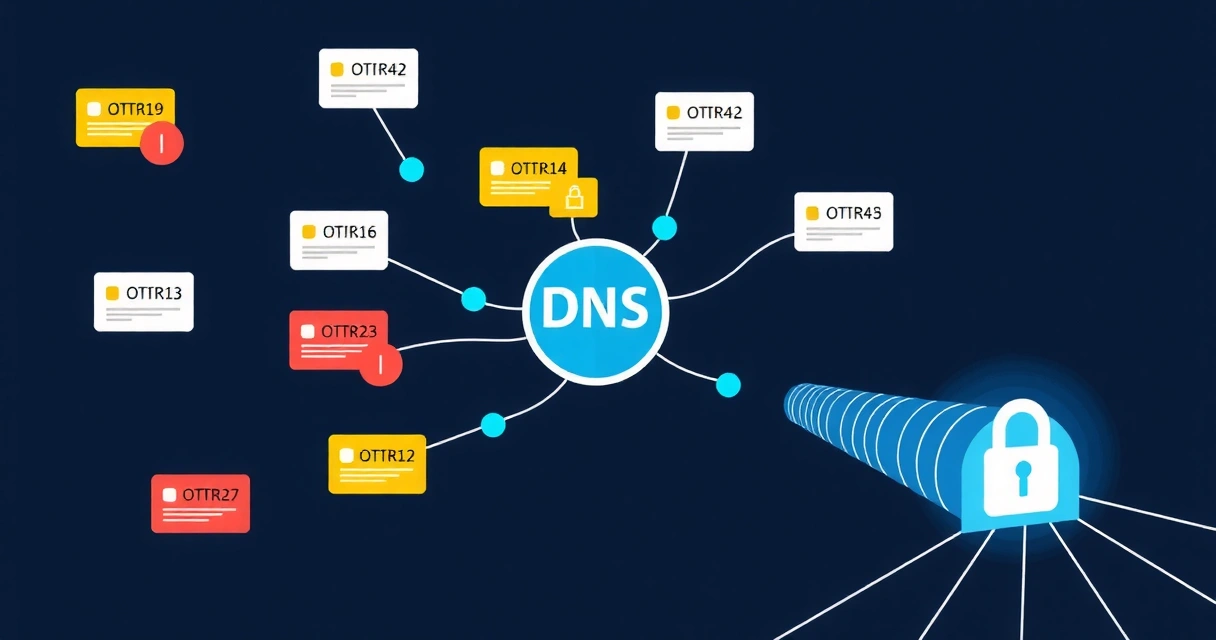
When your DNS server not responding error appears, it means your device cannot translate human-readable domain names (like vpnwg.com) into numerical IP addresses. This failure prevents internet access because your browser or application cannot locate the servers hosting the websites you want to visit. The issue often manifests as a "DNS not working" message and can stem from various points in your network, from your local device settings to your router or even your Internet Service Provider (ISP)'s DNS servers.
Understanding the root cause is key to resolving the problem. This guide will walk through common causes and provide step-by-step fixes applicable across Windows, macOS, Linux, and mobile devices.
Understanding DNS Failure and Its Symptoms
A Domain Name System (DNS) server acts like a phonebook for the internet. When you type a website address, your device queries a DNS server to find the corresponding IP address. If the DNS server fails to respond, this translation process halts, and your internet connection effectively breaks, even if your device shows a "connected" status.
Common symptoms include web pages failing to load, browser error messages like "This site can't be reached" or "Server Not Found," and applications unable to connect to online services. You might still be able to ping IP addresses directly, confirming that the issue is specifically with DNS resolution, not general network connectivity.
Common Causes of DNS Server Not Responding
Several factors can lead to your DNS server not responding. Identifying the specific cause narrows down the troubleshooting steps.
Incorrect DNS Server Settings
Your device or router might be configured with invalid or outdated DNS server addresses. Sometimes, a manual configuration for specific DNS servers (e.g., Google DNS, Cloudflare DNS) can become an issue if those servers are temporarily down or unreachable from your network.
Router or Modem Issues
Your router acts as the primary gateway for DNS requests from your local network. Firmware glitches, misconfigurations, or simply an overloaded buffer can prevent it from forwarding DNS queries or responding with correct resolutions. A simple reboot often clears these temporary states.
Firewall and Antivirus Interference
Security software, including firewalls and antivirus programs, can sometimes incorrectly block legitimate DNS traffic. This can be due to overly aggressive settings or a false positive detection, preventing your device from communicating with DNS servers.
ISP-Related Problems
Your Internet Service Provider (ISP) typically provides default DNS servers. If these servers experience outages or performance issues, all users relying on them will encounter DNS resolution problems. This is usually out of your control and requires waiting for the ISP to resolve.
DNS Cache Corruption
Operating systems and browsers maintain a local DNS cache to speed up name resolution. If this cache becomes corrupted or contains outdated entries, it can lead to failures even if the actual DNS servers are functioning correctly.
Malware or Network Attacks
Malicious software can modify your DNS settings to redirect traffic, leading to "DNS server not responding" errors or directing you to phishing sites. In rare cases, a Denial-of-Service (DoS) attack on your ISP's DNS servers can also cause widespread issues. Regular security assessments can help identify such vulnerabilities on your network. Tools like Secably offer vulnerability scanning to help detect these threats.
Troubleshooting Your DNS Not Working Across Devices
Here are practical steps to fix a DNS not working error on various operating systems and devices.
1. Basic Network Device Reboot
Always start with the simplest fix: reboot your network hardware. Turn off your router and modem, wait 30 seconds, then turn the modem back on. After the modem is fully online (indicated by stable lights), power on your router. Then, restart your computer or mobile device. This clears temporary glitches and resets network connections.
2. Flush DNS Cache and Reset IP
Clearing your local DNS cache forces your system to re-query DNS servers, refreshing potentially stale or corrupted entries. Resetting your IP configuration can resolve issues with your device's network adapter.
Windows
- Open Command Prompt as Administrator.
- Run these commands sequentially:
ipconfig /flushdns ipconfig /registerdns ipconfig /release ipconfig /renew netsh winsock reset - Restart your computer.
macOS
- Open Terminal (Applications > Utilities > Terminal).
- Run this command for recent macOS versions:
sudo dscacheutil -flushcache; sudo killall -HUP mDNSResponder - You may be prompted for your administrator password.
Linux
The command depends on your distribution and whether a local DNS caching service (like systemd-resolved or dnsmasq) is running.
- For
systemd-resolved(common on Ubuntu 17.04+):sudo systemd-resolve --flush-caches - Alternatively, restart the service:
sudo systemctl restart systemd-resolved - For older systems or
dnsmasq:sudo /etc/init.d/dnsmasq restart
3. Change DNS Servers Manually
Switching to a public, reliable DNS server can bypass issues with your ISP's servers. Google DNS (8.8.8.8, 8.8.4.4) and Cloudflare DNS (1.1.1.1, 1.0.0.1) are popular choices.
Windows
- Go to Control Panel > Network and Sharing Center > Change adapter settings.
- Right-click your active connection (e.g., Ethernet or Wi-Fi) > Properties.
- Select "Internet Protocol Version 4 (TCP/IPv4)" > Properties.
- Choose "Use the following DNS server addresses" and enter:
Preferred DNS server:8.8.8.8
Alternate DNS server:8.8.4.4 - Click OK, then OK again.
macOS
- Go to System Settings > Network.
- Select your active connection > Details (or Advanced for older macOS).
- Go to the "DNS" tab.
- Click the "+" button to add
8.8.8.8and8.8.4.4. Remove any existing problematic entries. - Click OK or Apply.
Linux
Editing /etc/resolv.conf is often temporary. For persistent changes, edit your network manager settings (e.g., NetworkManager GUI, Netplan configuration).
Example for NetworkManager (GUI):
- Open Network settings.
- Select your connection > Gear icon (or Edit).
- Go to IPv4 or IPv6 tab.
- Set "DNS" to Automatic (DHCP) addresses only OFF, then enter
8.8.8.8, 8.8.4.4. - Apply changes and restart network.
Mobile Devices (Android/iOS)
DNS settings on mobile devices are typically configured per Wi-Fi network.
- Android: Go to Settings > Network & internet > Wi-Fi. Long-press your network > Modify network > IP settings > Static. Enter your router's IP as Gateway, and then specify DNS 1 and DNS 2 (e.g.,
1.1.1.1and1.0.0.1). - iOS: Go to Settings > Wi-Fi. Tap the "i" icon next to your network > Configure DNS > Manual. Add your preferred DNS servers.
4. Temporarily Disable Firewall/Antivirus
If you suspect security software, temporarily disable your firewall or antivirus and test for internet access. If the issue resolves, re-enable and adjust its settings to allow DNS traffic (UDP port 53). Remember to re-enable them quickly to maintain system security.
5. Check Router DNS Settings
Log into your router's administration panel (usually via 192.168.1.1 or 192.168.0.1 in your browser). Look for DNS settings under WAN, Internet, or Network configuration. You can often specify public DNS servers here, which will apply to all devices connected to your router.
Preventative Measures and Advanced Solutions
Beyond immediate fixes, proactive steps can minimize future DNS server not responding issues.
Use a Reliable VPN Service
A high-quality VPN, like VPNWG (https://vpnwg.com), routes your traffic through its own secure DNS servers, bypassing your ISP's potentially unreliable or compromised DNS. VPNWG offers WireGuard + Amnezia obfuscation, ensuring your DNS queries are private and resolved efficiently. This also helps prevent DNS leaks, which can expose your browsing activity.
For those interested in building their own secure network, our guide on building a WireGuard VPN server provides comprehensive instructions.
Keep Software Updated
Ensure your operating system, browser, router firmware, and security software are always up-to-date. Updates often include bug fixes that can resolve network connectivity issues, including those related to DNS.
Consider Third-Party DNS Providers
Many users opt for public DNS providers for better speed, reliability, and privacy features. Here's a comparison of common options:
| Provider | Primary DNS | Secondary DNS | Key Features |
|---|---|---|---|
| Google Public DNS | 8.8.8.8 | 8.8.4.4 | Fast, reliable, global network |
| Cloudflare DNS | 1.1.1.1 | 1.0.0.1 | Fastest, privacy-focused (no logging of IP addresses) |
| OpenDNS Home | 208.67.222.222 | 208.67.220.220 | Parental controls, phishing protection |
| Quad9 | 9.9.9.9 | 149.112.112.112 | Malware blocking, privacy-focused |
Utilize Proxy Services for Specific Needs
While not a direct fix for DNS issues, proxy services like those offered by GProxy can sometimes bypass DNS problems by routing specific traffic through their own servers. This is more for anonymous browsing or accessing geo-restricted content rather than a general internet fix, but it highlights alternative routing methods when DNS fails.
Conclusion
A "DNS server not responding" error can be frustrating, but with systematic troubleshooting, it's often fixable. By checking your network hardware, clearing caches, adjusting DNS settings, and considering a reliable VPN service like VPNWG, you can restore your internet connectivity and ensure more stable, private browsing.
FAQ: Why does my DNS server keep failing to respond?
Your DNS server might repeatedly fail to respond due to consistent issues with your ISP's DNS servers, frequent router glitches, or persistent malware on your device. Regularly flushing your DNS cache, using public DNS servers, and employing a VPN can help mitigate these recurring problems.
FAQ: How do I know if my DNS is the problem or my internet connection?
You can tell if DNS is the problem by trying to access websites using their IP addresses instead of domain names (e.g., typing 142.250.190.14 for Google, if you know it). If you can reach sites by IP but not by name, DNS is the issue. If you can't reach anything at all, even by IP, your general internet connection is likely down.
FAQ: Is it safe to change my DNS server to a public one?
Yes, it is generally safe to change your DNS server to a reputable public provider like Google DNS (8.8.8.8) or Cloudflare DNS (1.1.1.1). These services are often faster and more private than default ISP DNS, and they typically offer better security features like protection against phishing and malware.