
What is a DNS Leak?
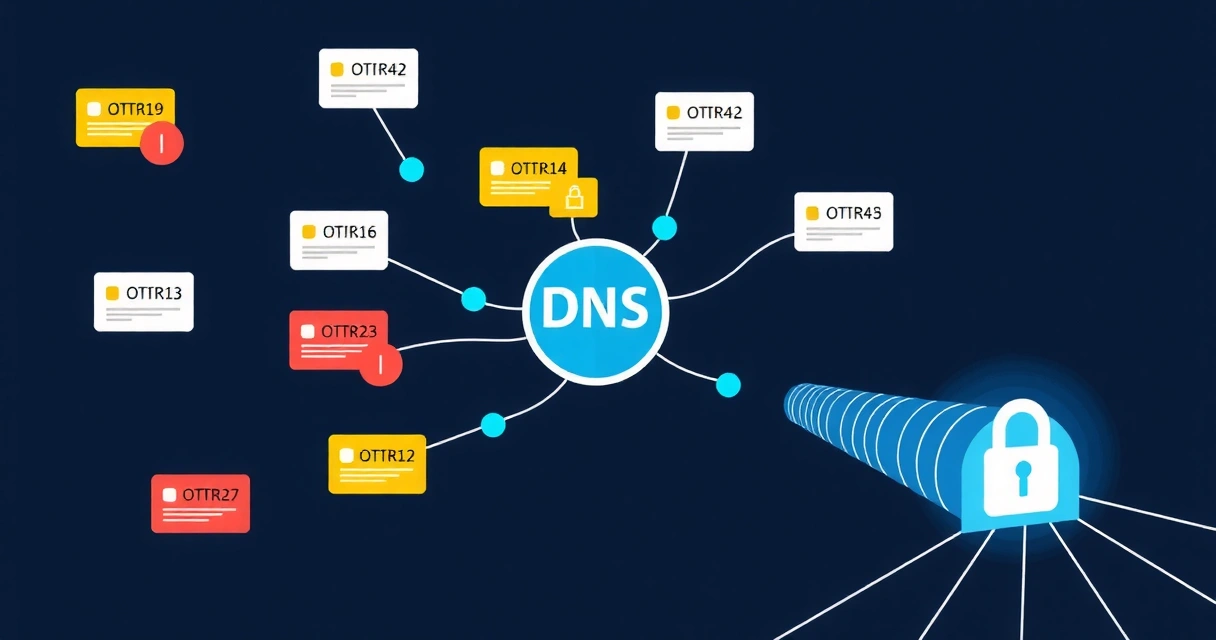
A DNS leak occurs when your device, despite being connected to a Virtual Private Network (VPN), sends DNS (Domain Name System) queries outside of the encrypted VPN tunnel to your Internet Service Provider's (ISP) DNS servers or other third-party servers. This exposes your browsing activity, including websites visited, to your ISP and potentially other entities, compromising your privacy even when you believe your VPN is active.
Normally, when you type a website address like vpnwg.com into your browser, your device sends a DNS query to resolve that human-readable name into an IP address. Without a VPN, this query goes directly to your ISP's DNS server. With a properly configured VPN, all traffic, including DNS queries, should be routed through the encrypted tunnel to the VPN provider's DNS servers.
Common Causes of DNS Leaks
Several factors can lead to DNS leaks, often stemming from system-level network configurations or specific software behaviors.
- Manual VPN Configuration Errors: If you set up a VPN manually, incorrect DNS server settings on your operating system can cause queries to bypass the VPN tunnel.
- IPv6 Fallback Issues: Many VPNs primarily handle IPv4 traffic. If your system uses IPv6, and the VPN client doesn't fully support or tunnel IPv6 DNS requests, your device might send IPv6 DNS queries directly to your ISP's servers.
- Misconfigured Firewall Rules: Loose or improperly configured firewall rules can allow DNS traffic (typically UDP port 53) to bypass the VPN interface, even when other traffic is routed through the tunnel. Regular security assessments, such as those offered by Secably, can help identify such vulnerabilities in your network setup.
- Browser-Based DNS: Features like DNS over HTTPS (DoH) or DNS over TLS (DoT) in web browsers can sometimes bypass VPN-controlled DNS, especially if configured to use a specific public DNS resolver (e.g., Cloudflare, Google) directly.
- VPN Software Bugs: Less common, but sometimes a flaw in the VPN client software itself can lead to DNS leakage, particularly during connection drops or reconnections.
How to Detect a DNS Leak
Identifying a DNS leak is straightforward and should be a routine check for any VPN user. Several online tools can help you determine if your DNS requests are being properly routed through your VPN.
- Connect to your VPN: Ensure your VPN client is active and shows a connected status.
- Visit a DNS leak test website: Open your web browser and navigate to a reputable DNS leak test site (e.g.,
dnsleaktest.comoripleak.net). - Review the results: The site will display the IP addresses and hostnames of the DNS servers handling your queries.
If the displayed DNS servers belong to your ISP or a third-party not associated with your VPN provider, you have a DNS leak. A properly secured connection will show only DNS servers owned and operated by your VPN provider.
Preventing DNS Leaks
Proactive measures are crucial to ensure your DNS queries remain private and within your VPN tunnel.
Use a Reputable VPN Service
The most effective defense against DNS leaks is using a high-quality VPN service that incorporates built-in DNS leak protection. VPNWG, for instance, utilizes the Amnezia VPN protocol, built on WireGuard, which is designed to prevent DNS leaks by routing all traffic, including DNS requests, through the encrypted tunnel. This ensures your DNS queries are resolved by our secure, private DNS servers, effectively bypassing your ISP's servers and protecting your privacy, a critical feature for tasks like bypassing deep packet inspection.
Enable VPN's Built-in Protection
Most modern VPN clients include features specifically designed to prevent DNS leaks. Ensure these are enabled:
- DNS Leak Protection: This feature forces all DNS requests through the VPN tunnel.
- Kill Switch: A kill switch blocks all internet traffic if the VPN connection drops unexpectedly. This prevents your device from reverting to your ISP's DNS servers during a VPN outage.
Manual DNS Configuration at the Operating System Level
While a good VPN client should handle DNS, you can configure your operating system to use specific, privacy-focused DNS servers as a fallback or primary setting. This can help if your VPN client is not fully robust in its DNS handling.
Windows Example: Changing DNS Servers
Open Command Prompt as Administrator and use netsh:
netsh interface ipv4 set dnsservers "Ethernet" static 1.1.1.1 primary
netsh interface ipv4 add dnsservers "Ethernet" 1.0.0.1 index=2
Replace "Ethernet" with your actual network adapter name if different. Use public DNS like Cloudflare (1.1.1.1, 1.0.0.1), Google (8.8.8.8, 8.8.4.4), or Quad9 (9.9.9.9).
Linux Example: Editing /etc/resolv.conf
You can manually edit /etc/resolv.conf, but beware that NetworkManager or systemd-resolved might overwrite it. For persistent changes, configure these services directly.
# Example /etc/resolv.conf
nameserver 9.9.9.9
nameserver 149.112.112.112
To prevent overwrites, you might need to make /etc/resolv.conf immutable: sudo chattr +i /etc/resolv.conf. Remove with -i if you need to modify it later.
Disable IPv6 if Not Needed
If you don't actively use IPv6, disabling it can prevent potential IPv6 DNS leaks, especially if your VPN client doesn't fully support IPv6 tunneling.
Windows Example: Disable IPv6 via Network Adapter Settings
- Go to
Control Panel > Network and Internet > Network and Sharing Center. - Click
Change adapter settings. - Right-click your active network adapter (e.g., Ethernet or Wi-Fi) and select
Properties. - Uncheck
Internet Protocol Version 6 (TCP/IPv6). - Click
OK.
Linux Example: Disable IPv6 via sysctl
Temporarily disable IPv6:
sudo sysctl -w net.ipv6.conf.all.disable_ipv6=1
sudo sysctl -w net.ipv6.conf.default.disable_ipv6=1
To make it persistent, add these lines to /etc/sysctl.conf and then run sudo sysctl -p.
Configure Firewall Rules
Advanced users can configure their firewall to block all outbound DNS requests (UDP/TCP port 53) except those specifically routed through the VPN tunnel or to trusted VPN-provided DNS servers. This acts as a robust fail-safe. Tools like iptables on Linux or Windows Firewall can achieve this.
Manage Browser DNS Settings
Check your browser's settings for DNS over HTTPS (DoH) or DNS over TLS (DoT). While these enhance security by encrypting DNS requests, they can bypass your VPN's DNS control if configured to use an independent resolver. Consider disabling them or configuring them to use a resolver that aligns with your VPN's privacy goals.
Frequently Asked Questions
What is the difference between an IP leak and a DNS leak?
An IP leak occurs when your real IP address is exposed, usually due to a VPN connection dropping or misconfiguration, allowing your device to directly connect to the internet. A DNS leak specifically refers to your DNS requests bypassing the VPN tunnel, revealing the websites you visit, even if your actual IP address appears to be hidden by the VPN. Both compromise your privacy.
Can a DNS leak expose my real IP address?
While a DNS leak doesn't directly expose your real IP address in the same way an IP leak does, it can indirectly reveal information about you. Your ISP, which processes the leaked DNS requests, knows your real IP address and can correlate your browsing activity with your internet connection. This link between your activity and your ISP's records effectively compromises your anonymity.
Do all VPNs prevent DNS leaks?
No, not all VPNs effectively prevent DNS leaks. Lower-quality or poorly configured VPN services may still be susceptible. Reputable VPN providers like VPNWG integrate specific features such as DNS leak protection, kill switches, and proprietary protocols like Amnezia VPN to ensure all DNS traffic is securely routed through their tunnels. Always test your VPN connection for DNS leaks after setup and periodically thereafter.
Further Reading
For more on related topics, check out our articles on Internet Privacy in 2026: Navigating Threats and Fortifying Defenses and Build a WireGuard VPN Server: Step-by-Step Guide.